This guide explain the steps to setup a guest captive portal with Aruba IAP:
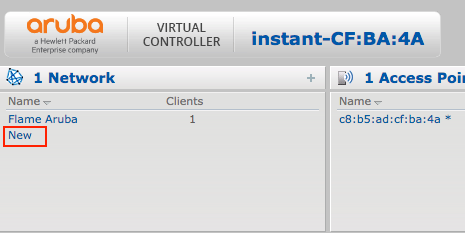
- Login to the IAP Web dashboard and select 'Networks -> new'
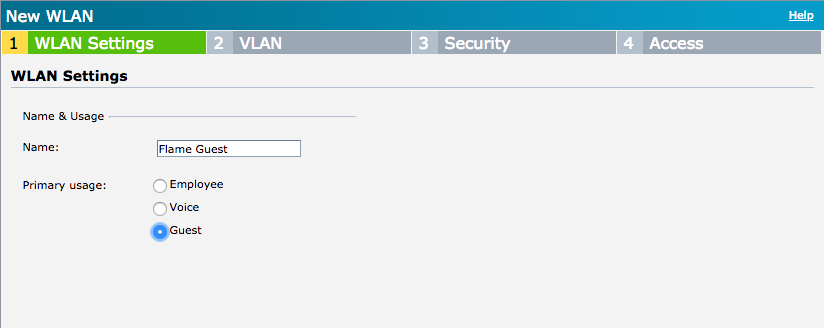
- Put the name you want (this is the new SSID name) and select as Primary usage: Guest
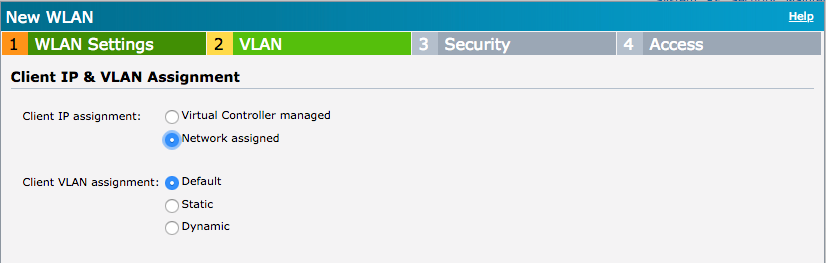
- In the next screen select 'Network assigned' for the client IP assignment and Default for the client VLAN assignment
- In the security section, you need to select as 'Splash page type': external.
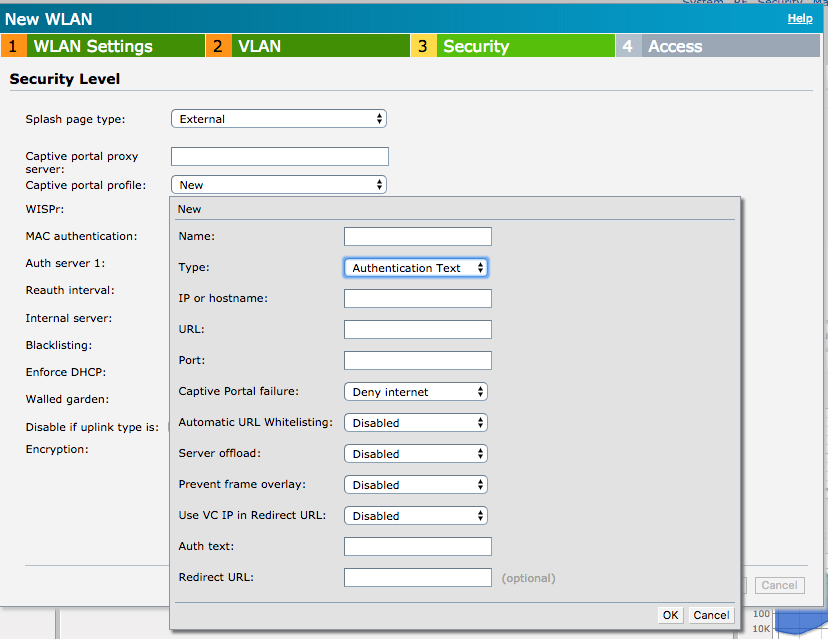
- You need to create a new captive portal profile with the following values:
| Type: | Authentication Text |
| Ip or hostname | https://cwp.flameanalytics.com |
| URL | Request by email at support@flameanalytics.com |
| Port | 443 |
| Captive Portal failure | Deny Internet |
| Automatic URL Whitelisting | Disabled |
| Server offload | Disabled |
| Prevent frame relay | Disabled |
| User VC IP in Redirect URL: | Enabled |
| Auth text: | authenticated |
| Redirect URL: |
Request by email the URL
- In the walled garden section, you need to whitelisting the following domains:
- *.googleapis.com
- *.googleusercontent.com
- *.gstatic.com
- *.accounts.youtube.com
- *.apis.google.com
- *.accounts.google.com
- *.l.google.com
- *.facebook.com
- *.facebook.net
- *.akamaihd.net
- *.fbcdn.net
- *.twitter.com
- *.twimg.com
- *.abs.twitter.com
- *.linkedin.com
- *.slicdn.com
- *.licdn.com
Was this article helpful?
That’s Great!
Thank you for your feedback
Sorry! We couldn't be helpful
Thank you for your feedback
Feedback sent
We appreciate your effort and will try to fix the article