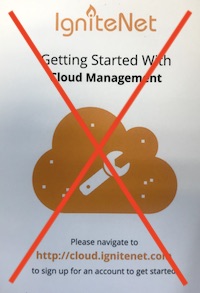
Important, do not follow the instructions that comes in the box
It's important that the device is registerred in our cloud (Flame).
Installation
You can use the screws that are included in the package.
You can also use the two pieces or tape that are also included in the package because this device is very light.
Hardware specifications
Available ports | 1 x 1000 BASE-T, 1 x 100 BASE-T |
Enclosure type | Indoor |
Power | 5V/2.1A DC (USB) |
LED’s | Power, Wireless 2.4, Wireless 5, ETH 1, ETH 2 |
Dimensions (L x W x H) | 83 x 64 x 22 mm (3.27 x 3.31 x 0.87 inch) |
Weight | 82 g (0.18 lb) |
Operating Environment | Operating Temperature: 0 to +50C (32 to 122 F) Store Temperature: -40 to 70C (-40 to 158 F) |
Where to place the device?
The optimal access point placement is in the center of the room or indoor area, mounted below the ceiling because their signals will not be affected by surrounding ducting, power cables, etc. It is advisable to place a device every 200 square meters if the space is diaphanous; in case there are walls or building constructions, we would recommend to place one device every 100 square meters. If you want to enhance the zone analysis by rooms, one device should be placed in each of the rooms that you want to measure. In all cases you must follow the guide: how to define zones?
Send device information to Flame
To proceed with the registering process, please send an email to the following address: support@flameanalytics.com with the subject:
“Ignitenet presence settings [company name]”
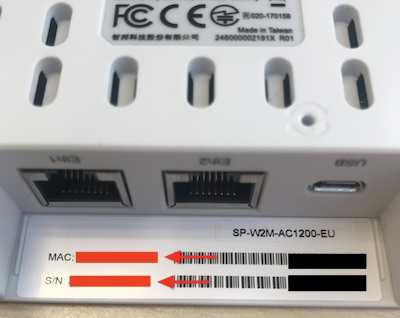
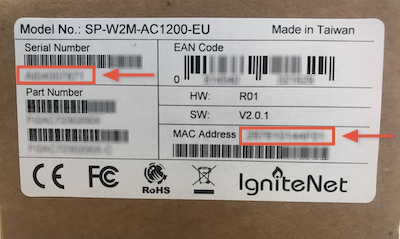
In the mail body please add the mac address and the serial number of the access point, as well as the address and the city where the device is located. You can find this information on the device's picture (below):
This information is also available on the side of the box:
This information will be used by us to auto-configure the device:
Connect cables
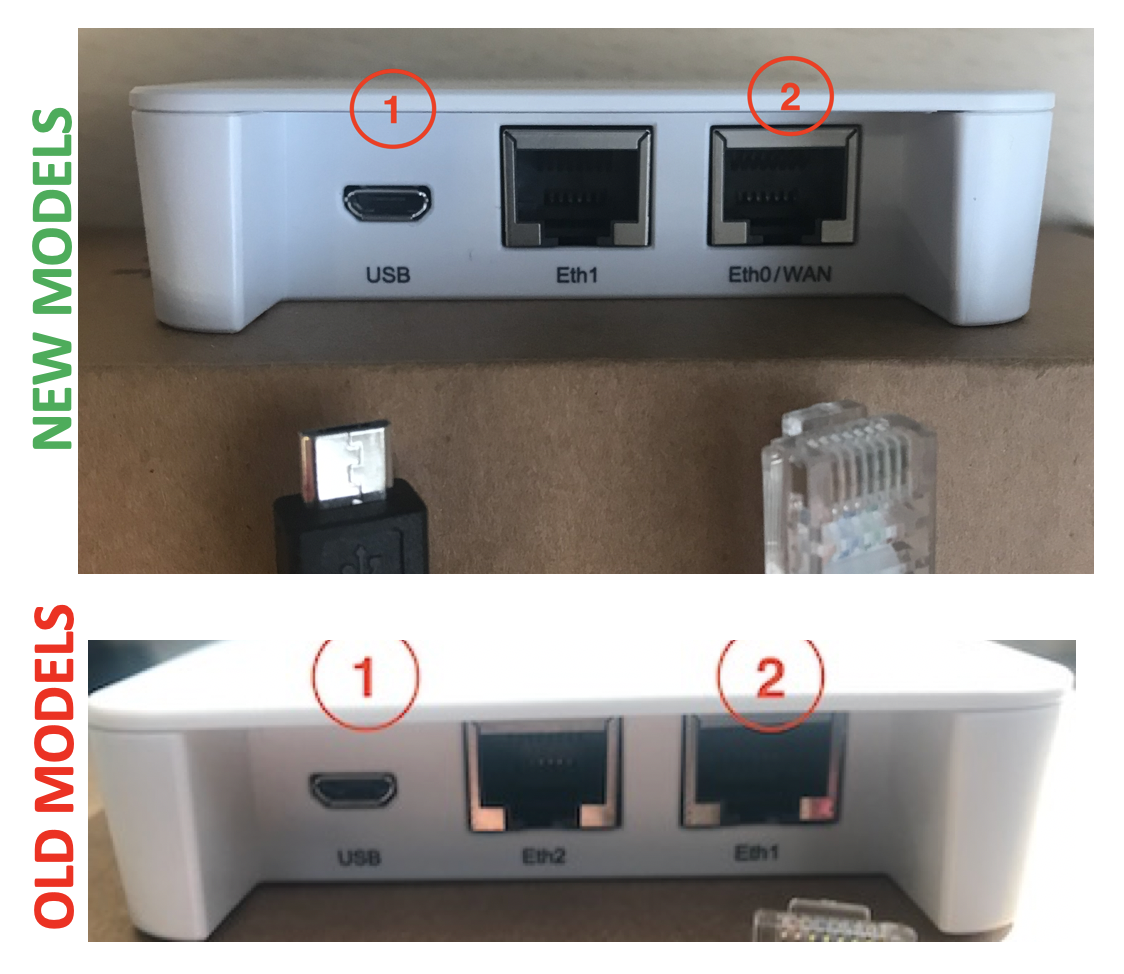
- Connect the cable from the AC/DC power adapter to the USB power jack on the AP.
- Connect category 5e or better cable to the 1000BASE-T eth0 (or eth1 in old models) RJ-45 port. Connect the other end of this cable to a LAN switch witch DHCP. If you don't have DHCP in your network, follow the manual configuration instructions.
Verify AP Operation
During normal operations, the led color are as described:
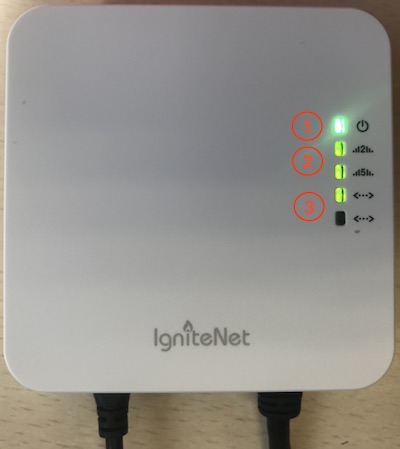
- The power LED should be on green.
- The wireless LEDs should be on / blinking green.
- The Ethernet port link / activity LEDs should be on / blinking green
Troubleshooting
Power LED on red and Wan on green or blinking green
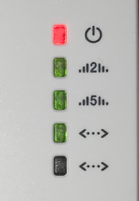
This usually happens when the device is receiving the configuration of the cloud. If you have already sent the information to our support team and they have answered you, wait a few minutes (typically 5 minutes). If the led doesn't turn green try the following:
- Check that your network has DHCP and that the device can obtain an IP address
- Verify DNS settings.
- Restart device by removing power.
If the device still doesn't work, contact our support department through email: support@flameanalytics.com
Power LED on red and Wan off
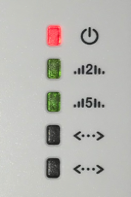
The network cable is not correctly connected.
Was this article helpful?
That’s Great!
Thank you for your feedback
Sorry! We couldn't be helpful
Thank you for your feedback
Feedback sent
We appreciate your effort and will try to fix the article