I.Wireless Network
Go to Site Home View, next click at Settings to view the settings options and click at Wired & Wireless Networks -> WLAN
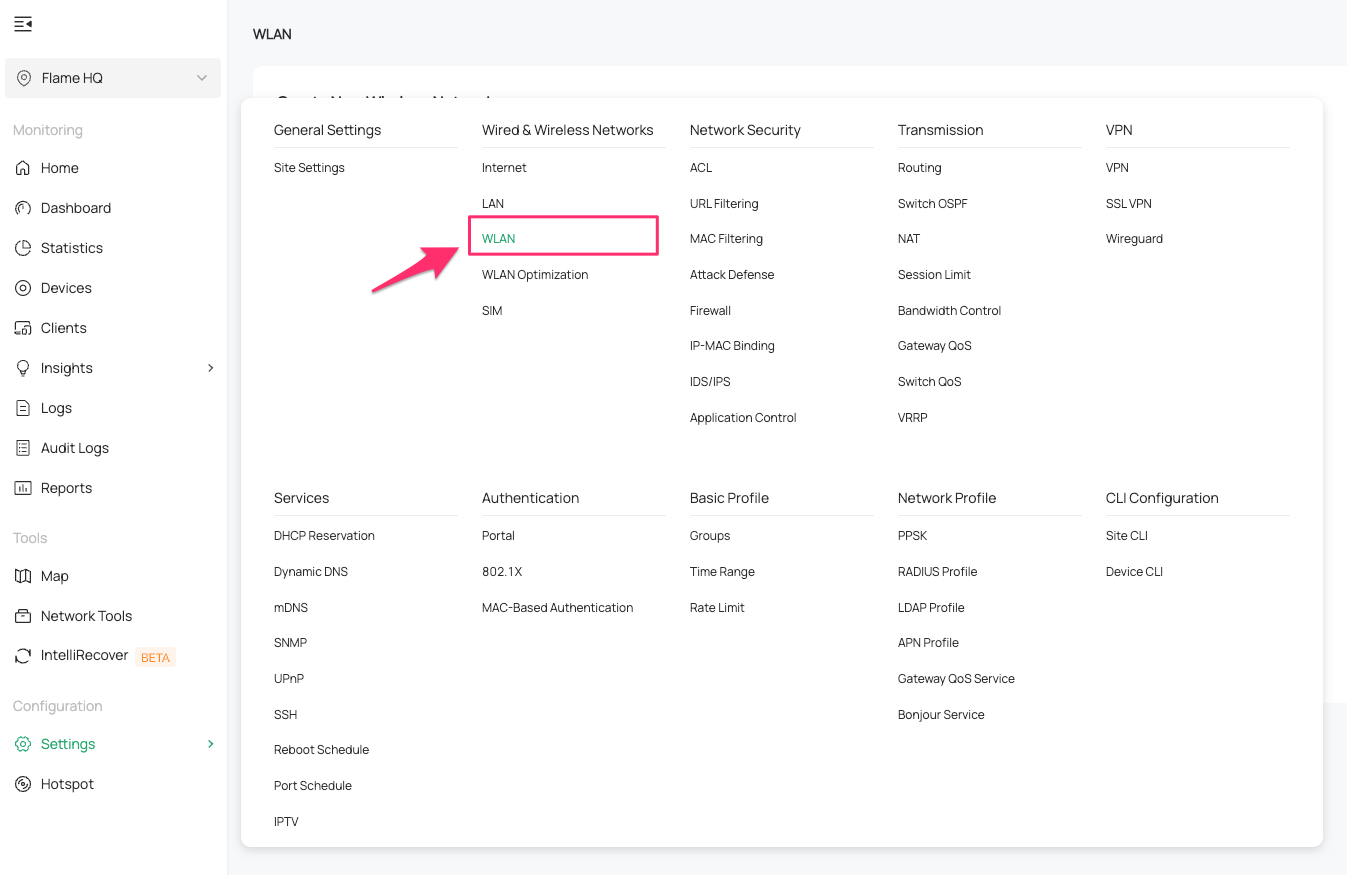
Create or Edit some Wireless Network that you have, the important options are:
Network Name (SSID): Portal FreeWiFi (or whatever you want)
Device Type: EAP
Guest Network: optional
Security: None
It’s important to set the Security to None, because the portal must be an open Wifi.
The other network options, you can modify them as you need the network.
II. RADIUS Profile
Go to Site Home View, next click at Settings to view the settings options and click at Network Profile -> RADIUS Profile
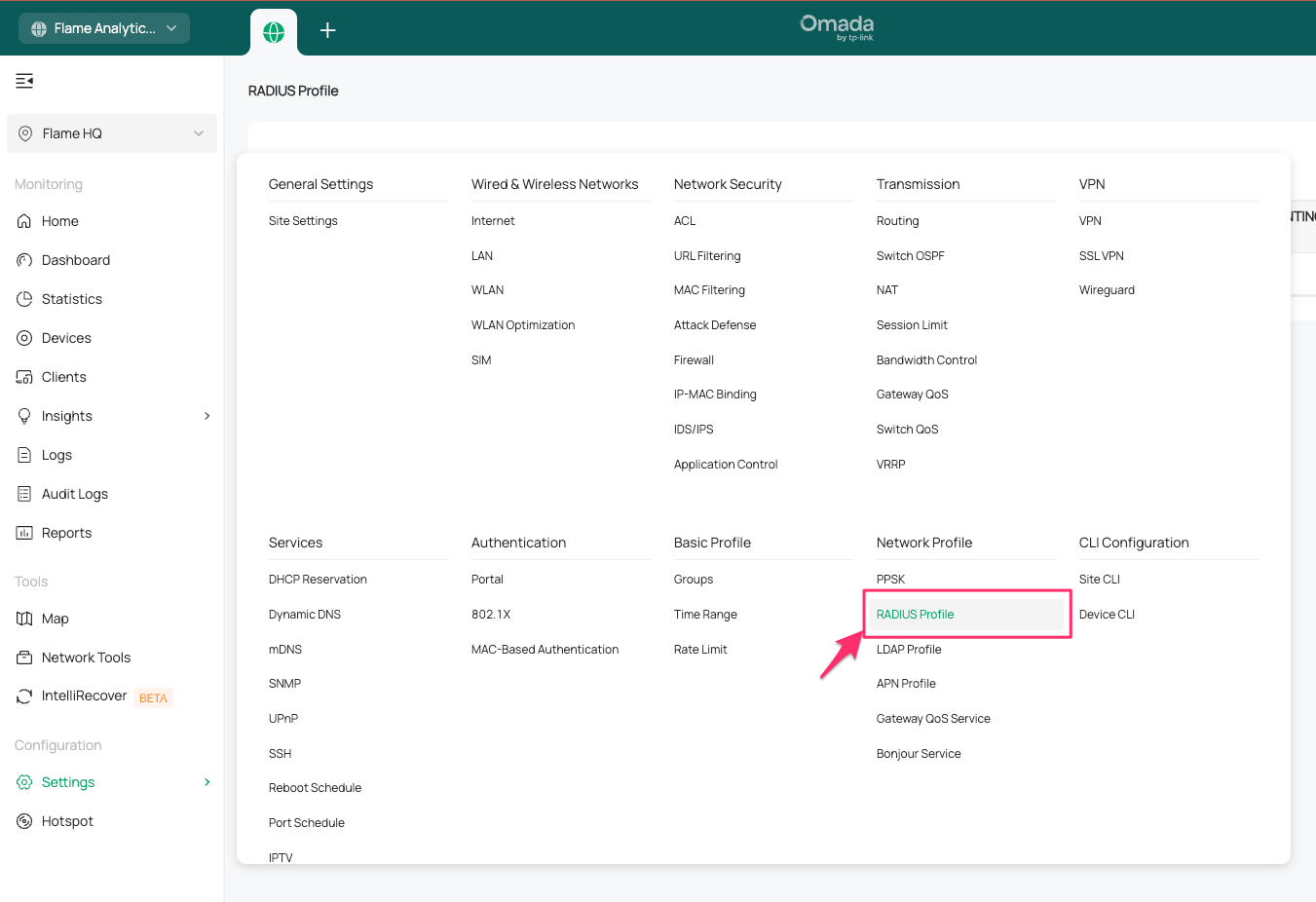
Create New Radius Profile:
Name: PortalFlameRadius
Authentication Server IP/URL: <insert radius_server_ip here>
Port: 1812 for authentication;
Authentication Password: <insert radius_secret here>
RADIUS Accounting: Enable
Interim Update: Enable
Interim Update Interval: 600 secs
Timeout: 10 secs
Accounting Server IP: <insert radius_server_ip here>
Port: 1813 for authentication;
Accounting Password: <insert radius_secret here>
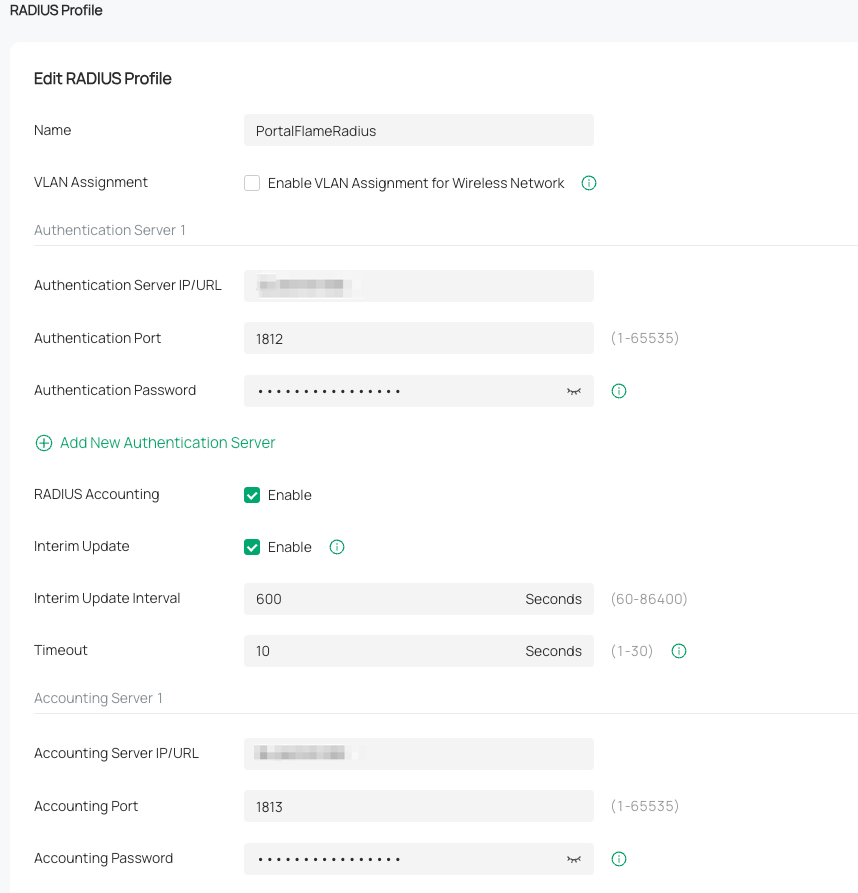
* We don’t recommend activating VLAN Assignment because is not currently supported when a client is authenticated by Portal with RADIUS Server.
III. Authentication Portal
Go to Site Home View, next click at Settings to view the settings options and click at Authentication -> Portal
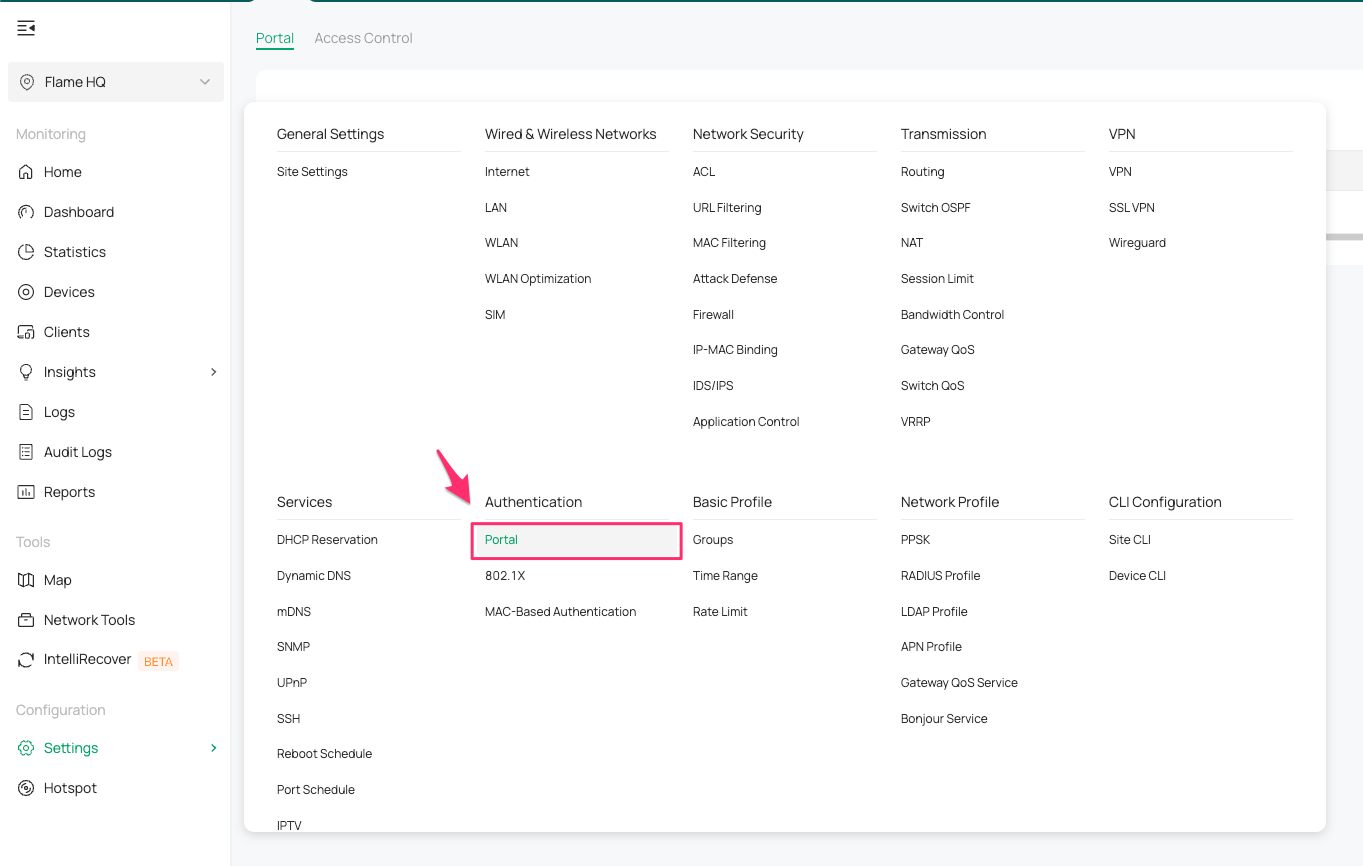
Create New Portal:
Portal Name: GuestPortal
Portal: Enabled
SSID & Network: Set the Network or open SSID’ want the captive portal
Authentication Type: RADIUS Server
Authentication Timeout: 7 days (*)
RADIUS Profile: PortalFlameRadius (previous Radius Profile created)
NAS ID: <identifier-place>
Authentication Mode: PAP
Portal Customization: External Web Portal (https)
URL Portal: <insert portal_url here>
HTTPS Redirection: Enable
Landing Page: The Promotional URL (https)
URL Landing: <insert portal_url here>/connected
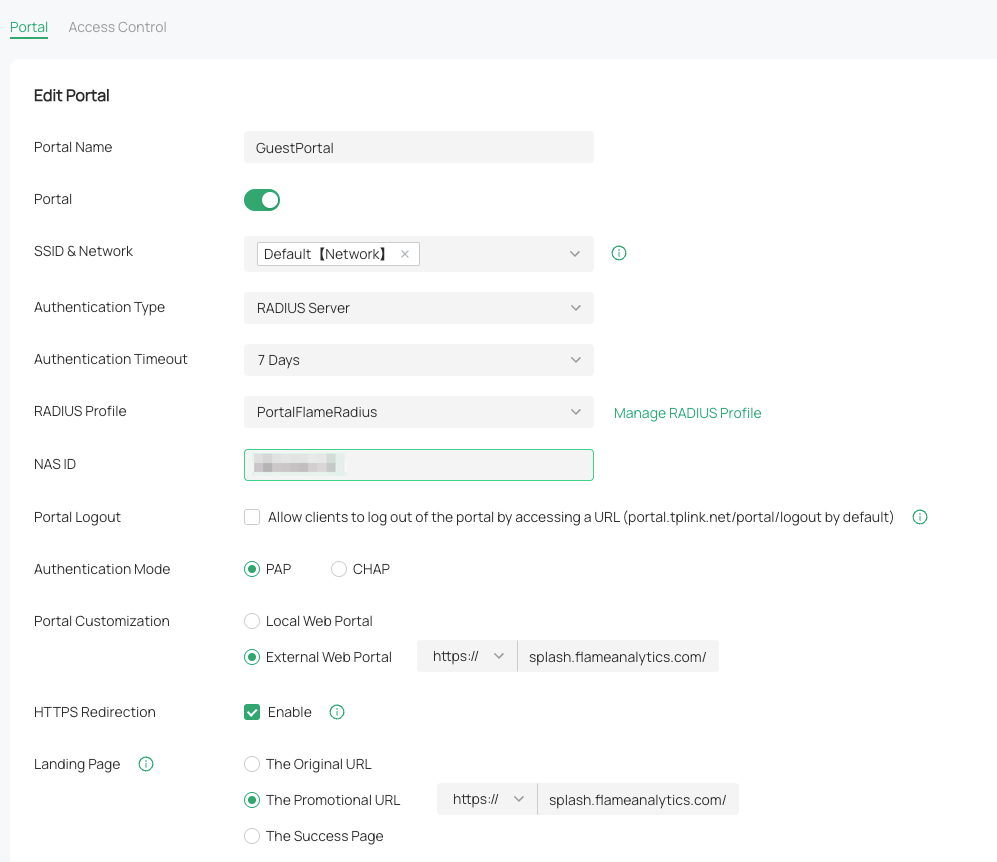
* Authentication TImeout: A client's connection to the network will expire after a set period of inactivity or after the specified timeout duration. This forces the client to re-authenticate (e.g., log in through the portal) to regain access. Set the time depending on your needs. We recommend no more than 30 days.
IV. Authentication Access Control (ACL)
Go to Site Home View, next click at Settings to view the settings options and click at Authentication -> Portal -> Access control
It’s on the same page to create a Portal.
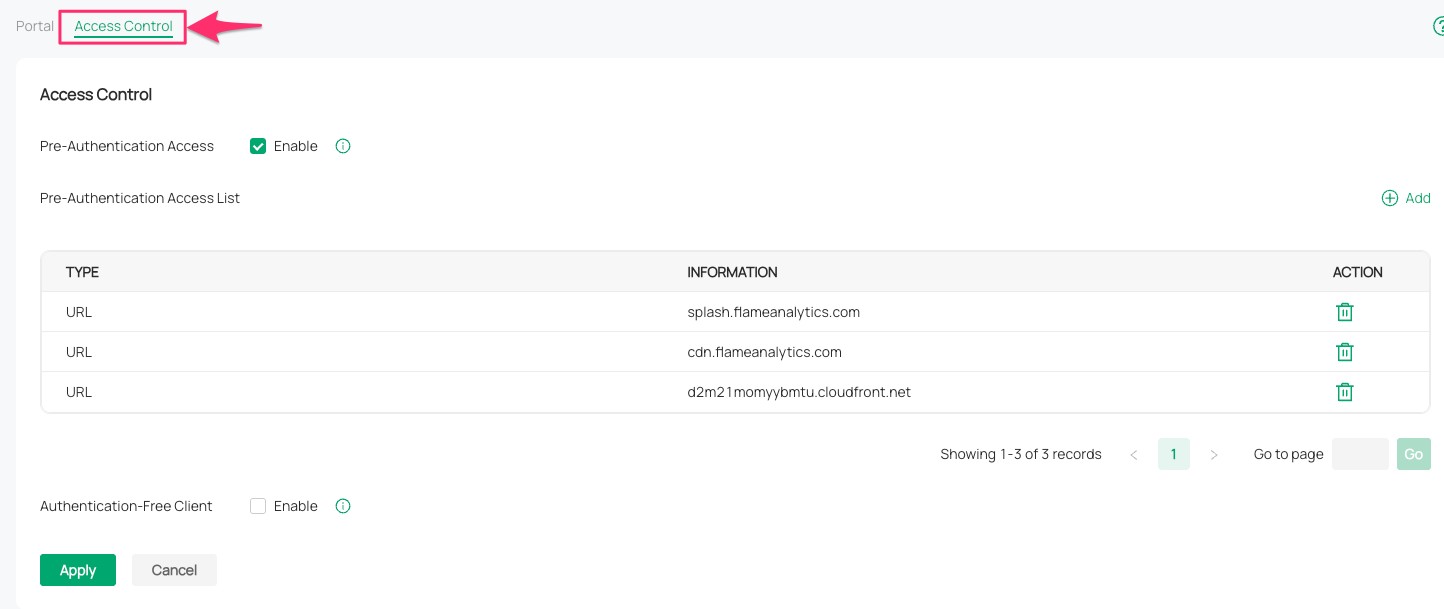
These are the Access Control Lists (ACLs). By default, users who connect to the WiFi network will not have access to any websites or URLs until they successfully authenticate through the Captive Portal. In this section, you can specify which pages users are permitted to access before completing the login process via the Captive Portal.
The basic URL’s need to work our captive portal are and you have to add:
cwp.flameanalytics.com
cdn.flameanalytics.com
d2m21momyybmtu.cloudfront.net
V. Cloud Controller Type
If your controller is cloud-based, it's important to let us know. We'll need to modify our portal settings to enable this option, since we need to call a cloud URL to authenticate the user.
To do this, you need to provide us with the prefix for your controller's URL. You can find it as shown in these examples:



You need to send us or configure the prefix on the platform, for example:
If you have this URL: https://euw1-omada-cloud.tplinkcloud.com
We need you to send us your prefix:
euw1
Was this article helpful?
That’s Great!
Thank you for your feedback
Sorry! We couldn't be helpful
Thank you for your feedback
Feedback sent
We appreciate your effort and will try to fix the article